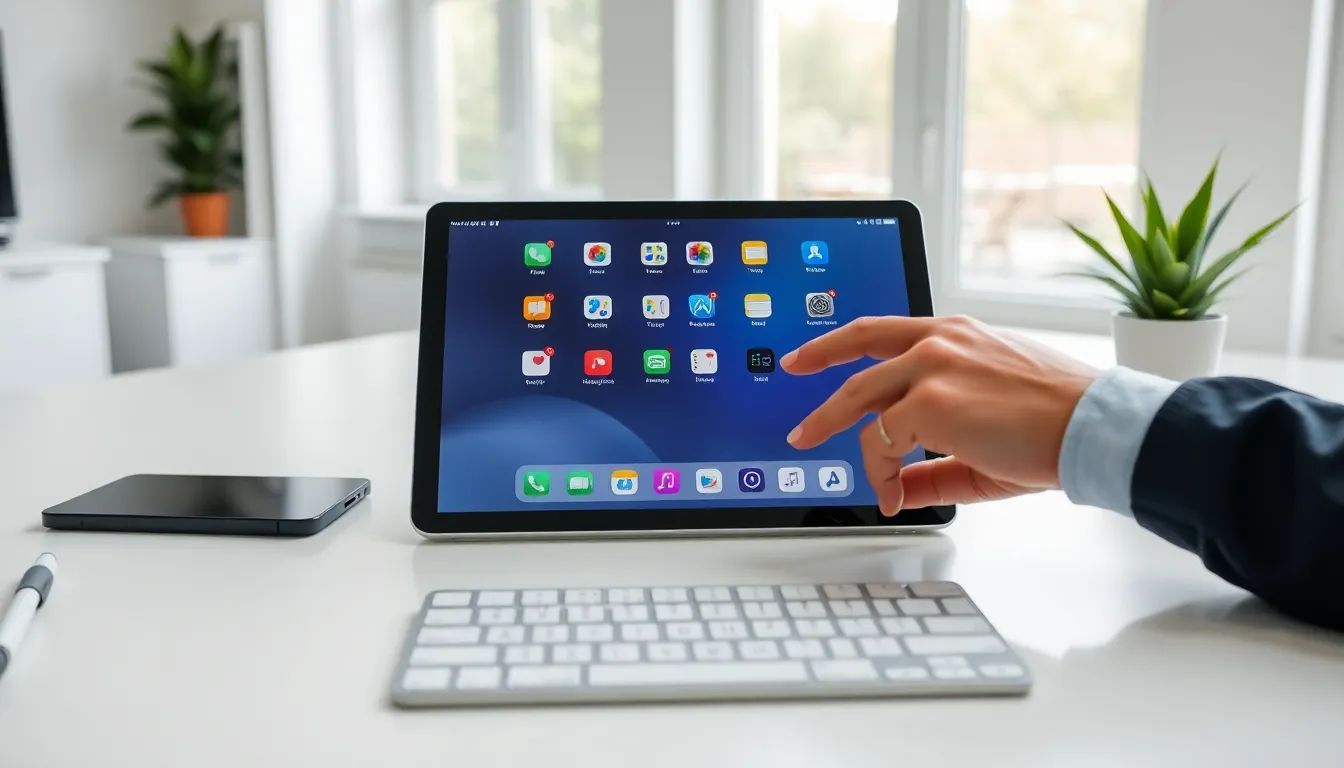
Tablets have become essential tools for work, entertainment, and everyday tasks. Yet many users barely scratch the surface of what their devices can do. These tablets tips will help anyone get more speed, better battery life, and improved security from their device. Whether someone uses an iPad, Android tablet, or Windows device, these practical strategies apply across the board. The following sections cover performance tweaks, productivity features, security measures, customization options, and care practices that extend a tablet’s useful life.
Table of Contents
ToggleKey Takeaways
- Clear app caches and manage background processes regularly to restore tablet speed and extend battery life.
- Master split-screen multitasking and keyboard shortcuts to transform your tablet into a productivity powerhouse.
- Enable strong authentication, Find My Device, and use a VPN on public Wi-Fi to protect sensitive data.
- Customize Focus modes and notification settings to reduce distractions and create a personalized experience.
- Use a quality case, maintain battery health between 20-80%, and restart weekly to extend your tablet’s lifespan.
- These tablets tips work across iPad, Android, and Windows devices to maximize performance and security.
Optimize Your Tablet’s Performance and Battery Life
A slow tablet frustrates everyone. Fortunately, a few simple tablets tips can restore speed and extend battery life significantly.
Clear Cache and Unused Apps
Apps store temporary data that builds up over time. This cached data consumes storage space and can slow down the device. Users should regularly clear app caches through Settings > Storage. Deleting apps that haven’t been opened in months also frees up resources.
Manage Background Processes
Many apps run in the background even when not in use. They drain battery and consume processing power. Both iOS and Android offer settings to restrict background activity for specific apps. Users can find these options under Battery or App Management settings.
Adjust Display Settings
The screen is the biggest battery drain on any tablet. Reducing brightness to 50-60% makes a noticeable difference. Enabling auto-brightness helps the device adapt to lighting conditions. Shortening the screen timeout to 30 seconds or one minute also conserves power.
Keep Software Updated
Manufacturers release updates that fix bugs and improve performance. Running outdated software often causes slowdowns and security vulnerabilities. Users should enable automatic updates or check for them monthly. These tablets tips alone can add hours to daily battery life.
Master Multitasking and Productivity Features
Modern tablets pack serious productivity features that many owners never discover. Learning these tablets tips transforms a casual device into a work powerhouse.
Split-Screen and Slide-Over Views
iPads offer Split View and Slide Over. Android tablets have split-screen mode. These features let users run two apps side by side, perfect for referencing a document while writing an email. On iPad, users drag an app from the dock to the screen edge. Android users tap the recent apps button and select “Split screen.”
Keyboard Shortcuts
Connecting a physical keyboard unlocks dozens of shortcuts. Common ones include Cmd+Tab (iPad) or Alt+Tab (Android/Windows) to switch apps quickly. Cmd+Space opens search on iPad. Learning five or six key shortcuts saves hours over time.
Use Widgets Effectively
Widgets display live information without opening apps. Weather, calendar events, reminders, and news headlines can all appear on the home screen. Users should arrange widgets based on what they check most frequently. This reduces the need to open multiple apps throughout the day.
Cloud Storage Integration
Syncing files with Google Drive, iCloud, or Dropbox ensures documents stay accessible across devices. Most tablets support multiple cloud services. Setting up automatic photo backup prevents losing memories if the device gets damaged or lost.
Enhance Security and Protect Your Data
Tablets often contain sensitive information, emails, photos, banking apps, and personal documents. These tablets tips help keep that data safe from threats.
Enable Strong Authentication
A six-digit passcode offers more security than a four-digit one. Biometric options like Face ID or fingerprint scanning add convenience without sacrificing protection. Users should avoid simple patterns like “123456” or their birth year.
Turn On Find My Device
Both Apple and Google offer device-tracking features. “Find My” on iPad and “Find My Device” on Android let owners locate, lock, or erase a lost tablet remotely. This feature should be enabled before a device goes missing, not after.
Review App Permissions
Many apps request access to cameras, microphones, contacts, and location data. Users should audit these permissions regularly. Does a flashlight app really need access to contacts? Probably not. Revoking unnecessary permissions reduces privacy risks.
Use a VPN on Public Wi-Fi
Public networks at coffee shops, airports, and hotels present security risks. A VPN encrypts internet traffic, preventing others from intercepting sensitive data. Several reliable VPN services cost less than $5 per month and work seamlessly on tablets.
Customize Settings for a Personalized Experience
Every user has different preferences. These tablets tips help people configure their devices to match their specific needs and habits.
Organize the Home Screen
Grouping apps into folders by category, Social, Work, Entertainment, Utilities, makes them easier to find. Users can also remove apps from the home screen while keeping them installed. This creates a cleaner, less distracting interface.
Set Up Focus Modes
iOS offers Focus modes that limit notifications during specific activities. Android has similar features through Digital Wellbeing. Users can create a “Work” mode that silences social media notifications or a “Sleep” mode that blocks everything except calls from family members.
Adjust Text Size and Display
Tablets offer accessibility settings that benefit everyone. Increasing text size reduces eye strain during long reading sessions. Bold text makes content easier to scan. Dark mode saves battery on OLED screens and feels easier on the eyes at night.
Configure Notification Preferences
Not every app deserves attention. Users should disable notifications for apps that don’t require immediate action. Email apps might warrant alerts, but games and shopping apps usually don’t. This simple change reduces distractions significantly. These tablets tips create a device that works with the user, not against them.
Extend Your Tablet’s Lifespan With Proper Care
A well-maintained tablet can last five years or more. These tablets tips protect the investment and keep the device running smoothly.
Use a Quality Case and Screen Protector
Drops happen. A protective case absorbs impact and prevents cracked screens. Tempered glass screen protectors cost around $10-20 and can save hundreds in repair costs. Users should choose cases that cover corners and edges where damage occurs most often.
Maintain Battery Health
Lithium-ion batteries degrade over time, but certain habits slow the process. Keeping charge levels between 20% and 80% extends battery lifespan. Avoiding extreme temperatures, both hot and cold, also helps. Users shouldn’t leave tablets in cars on hot summer days.
Clean the Device Regularly
Dust, oils, and debris accumulate on screens and in charging ports. A microfiber cloth removes smudges safely. Compressed air clears debris from ports and speakers. Users should never use harsh chemicals or excessive moisture when cleaning.
Restart Weekly
Restarting a tablet clears temporary files and refreshes system processes. Many users go months without rebooting. A weekly restart prevents the sluggishness that builds up over time and ensures apps function properly.