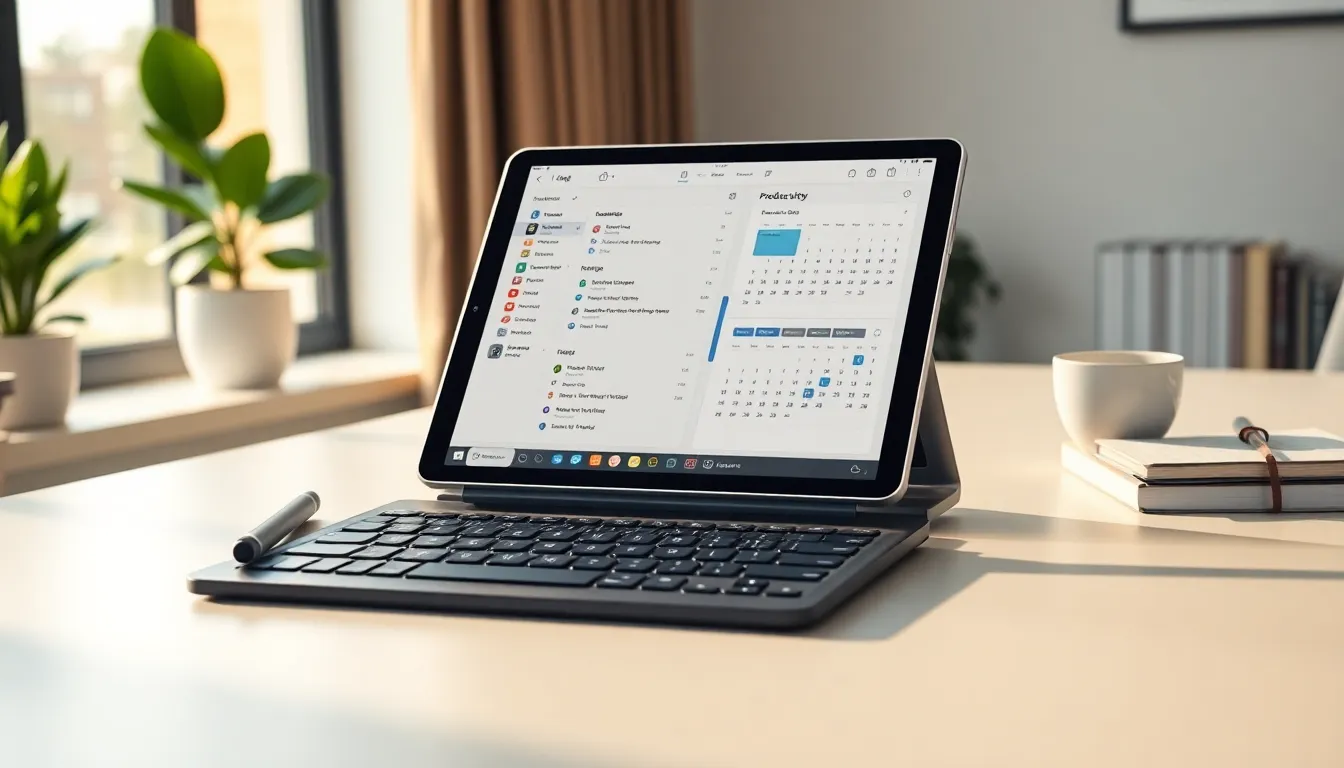
Tablet strategies can transform how people work, learn, and stay organized. These portable devices offer flexibility that laptops and desktops simply can’t match. But owning a tablet isn’t enough, users need the right approach to unlock its full potential.
The global tablet market continues to grow, with millions of people relying on these devices for everything from email to creative projects. Yet many tablet owners barely scratch the surface of what their devices can do. They use them for streaming video or casual browsing, then wonder why productivity feels stuck.
This guide covers practical tablet strategies that actually work. Readers will learn how to choose the right device, optimize their workflow, select the best apps, and keep their data secure. Whether someone uses a tablet for business or personal projects, these tips will help them get more done in less time.
Table of Contents
ToggleKey Takeaways
- Effective tablet strategies start with choosing the right device based on your primary use case, operating system preferences, and portability needs.
- Optimize your tablet workflow by setting up a dedicated workspace with accessories like a stand and Bluetooth keyboard to boost productivity.
- Master multitasking features like split-screen views and keyboard shortcuts to make your tablet function more like a traditional computer.
- Essential productivity apps for note-taking, task management, and cloud storage transform tablets from consumption devices into powerful work tools.
- Protect your data with strong passcodes, password managers, automatic backups, and VPNs when using public Wi-Fi.
- Enable remote wipe features before you need them so you can erase your tablet’s data if it’s ever lost or stolen.
Choosing the Right Tablet for Your Needs
The first step in any tablet strategy starts with picking the right device. Not all tablets serve the same purpose, and buying the wrong one leads to frustration.
Consider Your Primary Use Case
Someone who needs a tablet for heavy video editing requires different specs than a person who just wants to read ebooks. Business professionals might prioritize multitasking features, while students often need long battery life and note-taking capabilities.
Ask these questions before purchasing:
- Will the tablet replace a laptop or supplement it?
- What’s the most demanding task it needs to handle?
- Does it need cellular connectivity for travel?
- How important is stylus or keyboard support?
Operating System Matters
iPadOS, Android, and Windows tablets each have strengths. iPads excel at creative work and have a massive app library. Android tablets offer flexibility and better customization. Windows tablets run full desktop software, making them ideal for professionals who need specific programs.
The operating system also affects which tablet strategies work best. Someone invested in Apple’s ecosystem will find iPad workflows smoother. Android users benefit from Google services integration. Windows users can run the same programs they use on their desktop computers.
Screen Size and Portability
Smaller tablets (7-9 inches) fit in bags easily and work well for reading and quick tasks. Medium tablets (10-11 inches) balance portability with usable screen space for productivity. Larger tablets (12+ inches) function more like laptops and suit content creation.
Pick a size that matches daily habits. A commuter needs something compact. A designer working from home might prefer a larger display.
Optimizing Your Tablet Workflow
Owning a capable tablet means nothing without good habits. Smart tablet strategies focus on workflow optimization to squeeze maximum value from the device.
Set Up a Dedicated Workspace
Tablets work best when they have a consistent home. A stand keeps the screen at eye level, reducing neck strain. A Bluetooth keyboard speeds up typing tasks. These accessories turn a casual device into a serious work tool.
Organize apps on the home screen by function. Put work apps in one folder, entertainment in another. This small step reduces distractions and helps users switch into “work mode” faster.
Master Split-Screen and Multitasking
Modern tablets support split-screen views, slide-over panels, and floating windows. Learning these features changes how people work. They can reference a document while writing an email, or watch a tutorial while practicing in another app.
iPad users should learn Stage Manager for advanced window management. Android users can explore Samsung DeX or similar features on their devices. These tools make tablets feel more like traditional computers.
Use Keyboard Shortcuts
Tablet strategies often overlook keyboard shortcuts. When using an external keyboard, shortcuts for copy, paste, app switching, and screenshots save significant time. Most productivity apps support standard shortcuts, so muscle memory from desktop computing transfers over.
Automate Repetitive Tasks
Shortcuts on iPad and automation apps on Android can handle repetitive work. Users can create routines that resize images, send templated responses, or organize files automatically. Setting up these automations takes time upfront but pays off quickly.
Essential Apps and Tools for Productivity
The right apps transform a tablet from a consumption device into a production machine. These recommendations support various tablet strategies across different work styles.
Note-Taking and Writing
Notability and GoodNotes lead the pack for handwritten notes on iPad. Both sync across devices and support PDF annotation. For typed notes, Notion and Obsidian offer powerful organization features that scale from simple lists to complex knowledge bases.
Writers benefit from distraction-free apps like iA Writer or Ulysses. These strip away clutter and let users focus on words. Both support Markdown, making formatting simple without constant menu diving.
Task Management
Todoist works across every platform and handles everything from grocery lists to project management. Things 3 offers a cleaner design for Apple users who want simplicity. Asana and Monday.com suit team collaboration when multiple people need to coordinate.
Cloud Storage and File Management
Every tablet strategy needs solid cloud storage. Google Drive, Dropbox, and iCloud each have strengths. Google Drive integrates with productivity apps. Dropbox handles file sharing well. iCloud works seamlessly within Apple’s ecosystem.
File management apps like Documents by Readdle or the native Files app give users desktop-like control over their storage. They can zip folders, connect to network drives, and manage downloads efficiently.
Communication Tools
Slack, Microsoft Teams, and Zoom keep users connected. Tablet versions of these apps work well for meetings and quick messages. Video calls on tablets often look better than laptop webcams because users can position the device at better angles.
Security and Data Management Best Practices
Strong tablet strategies include protection plans. Tablets hold sensitive information, emails, photos, financial data, and work documents. Losing that data or having it stolen creates serious problems.
Enable Device Encryption
Most modern tablets encrypt data by default when users set a passcode. Always use a strong passcode, six digits minimum, or a full alphanumeric password for sensitive work. Biometric options like Face ID or fingerprint scanning add convenience without sacrificing security.
Use a Password Manager
1Password, Bitwarden, and Dashlane store login credentials securely. They generate unique passwords for every account, eliminating the temptation to reuse weak passwords. These apps integrate with tablet browsers and autofill fields quickly.
Set Up Automatic Backups
Backups should happen without user intervention. iCloud Backup runs automatically for iPad users. Android tablets can use Google’s backup service or third-party solutions. Test restoring from backup occasionally to confirm it actually works.
Be Careful on Public Wi-Fi
Public networks expose tablets to potential attacks. A VPN encrypts traffic and protects data on coffee shop or airport connections. ExpressVPN, NordVPN, and ProtonVPN all offer solid tablet apps.
Review App Permissions Regularly
Apps often request more access than they need. Check permissions every few months and revoke anything unnecessary. Does that game really need location access? Probably not. Tightening permissions improves both security and battery life.
Enable Remote Wipe
If a tablet gets lost or stolen, remote wipe features let users erase everything from another device. Both Apple and Google offer this through their device management tools. Set it up before losing the tablet, afterward is too late.